

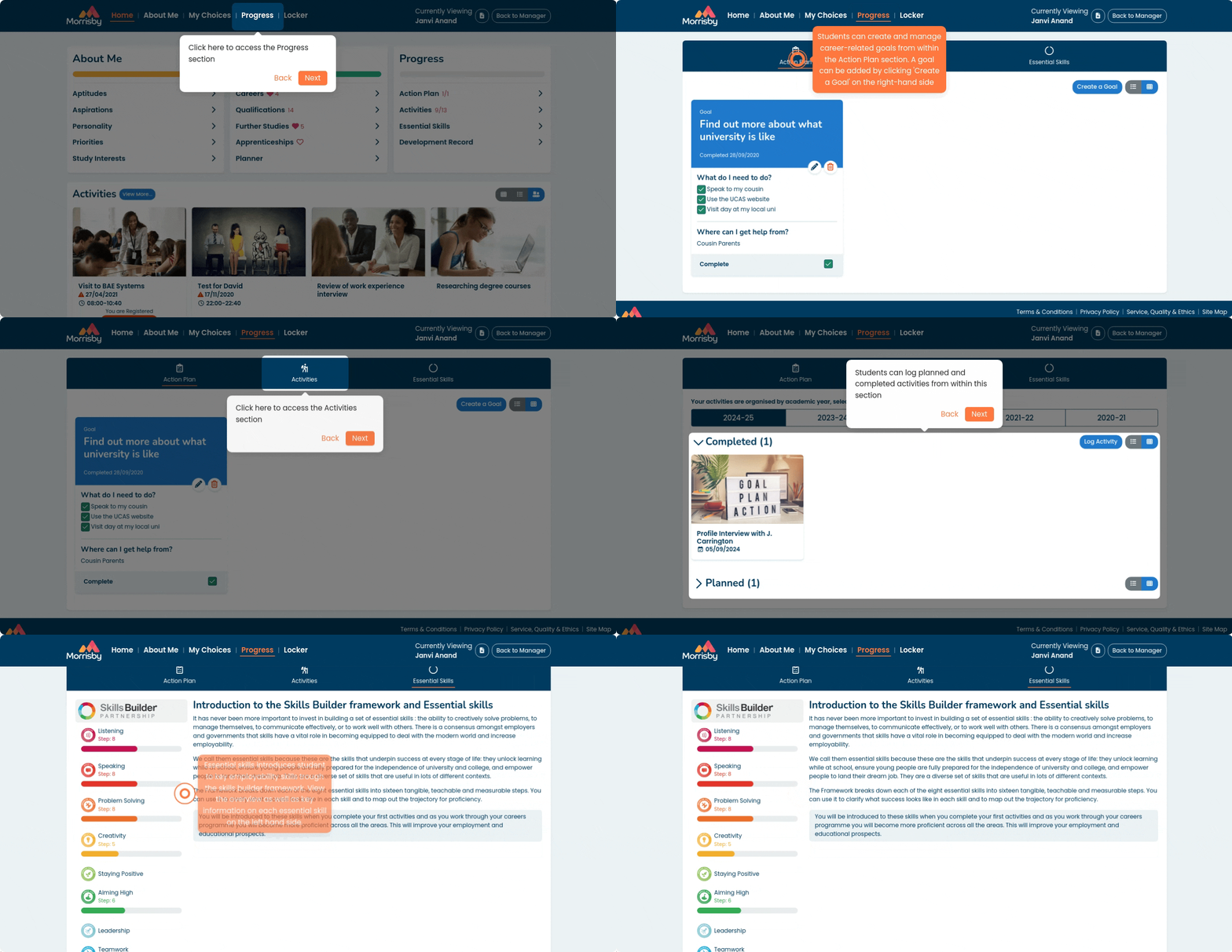
The student experience: Progress - Follow this link to view the guide at your own pace.
Accessing the Progress Section
- Log into the student account.
- Click ‘Progress’ from the top menu.
1. Action Plan
- You can create and manage career-related goals.
- Example goals:
- “Organise work experience”
- “Investigate local college courses”
- To create a goal:
- Click ‘Add a Goal’
- Enter details like goal title, due date, tasks, and who can help.
- Goals can be viewed:
- As tiles
- Or as a list
2. Activities
- You can log planned and completed activities, such as:
- School-arranged career lessons
- Personal activities like open days or work experience
- Open day visits they've attended or plan to attend.
- To log an activity:
- Click ‘Log an Activity’
- Enter the relevant details
- Activities can also be viewed as:
- Tiles
- List
3. Essential Skills
- Based on the Skills Builder Framework.
- You can learn about key employability skills.
- Features include:
- Overview of the 8 essential skills
- Additional info on each skill is listed on the left-hand side
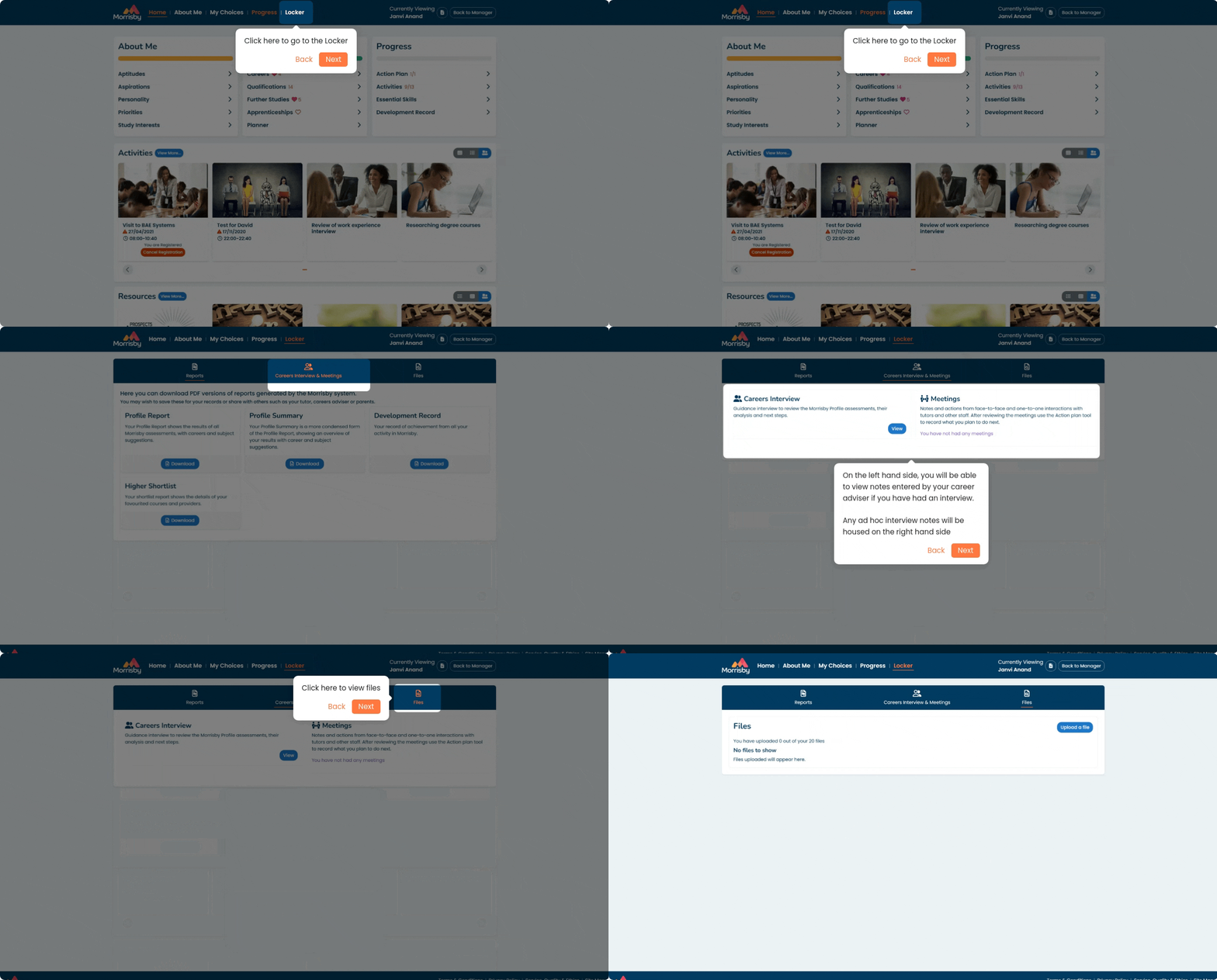
The student experience: Locker - Follow this link to view the guide at your own pace.
Accessing the Locker Section
- Log into the student account.
- Click ‘Locker’ from the top menu.
1. Report downloads
- On the left-hand side, you will be able to access the adviser's typed-up interview summary notes
- You will also be able to access meeting notes from any ad hoc meetings on the right-hand side
- Any courses that have been favourited will appear here automatically.
2. Meeting notes
- You will be able to download a PDF report detailing your assessment results
- The Profile report is the full report of all assessments, including careers and subject suggestions
- The summary report is a more concise version of the Profile report
- You will also be able to access meeting notes from any ad hoc meetings on the right-hand side
3. Files
- Here, you will be able to access and download any files that have been uploaded to activities, as well as upload any ad hoc files


