

How to use Permissions in Morrisby Manager - Click here to follow at your own pace
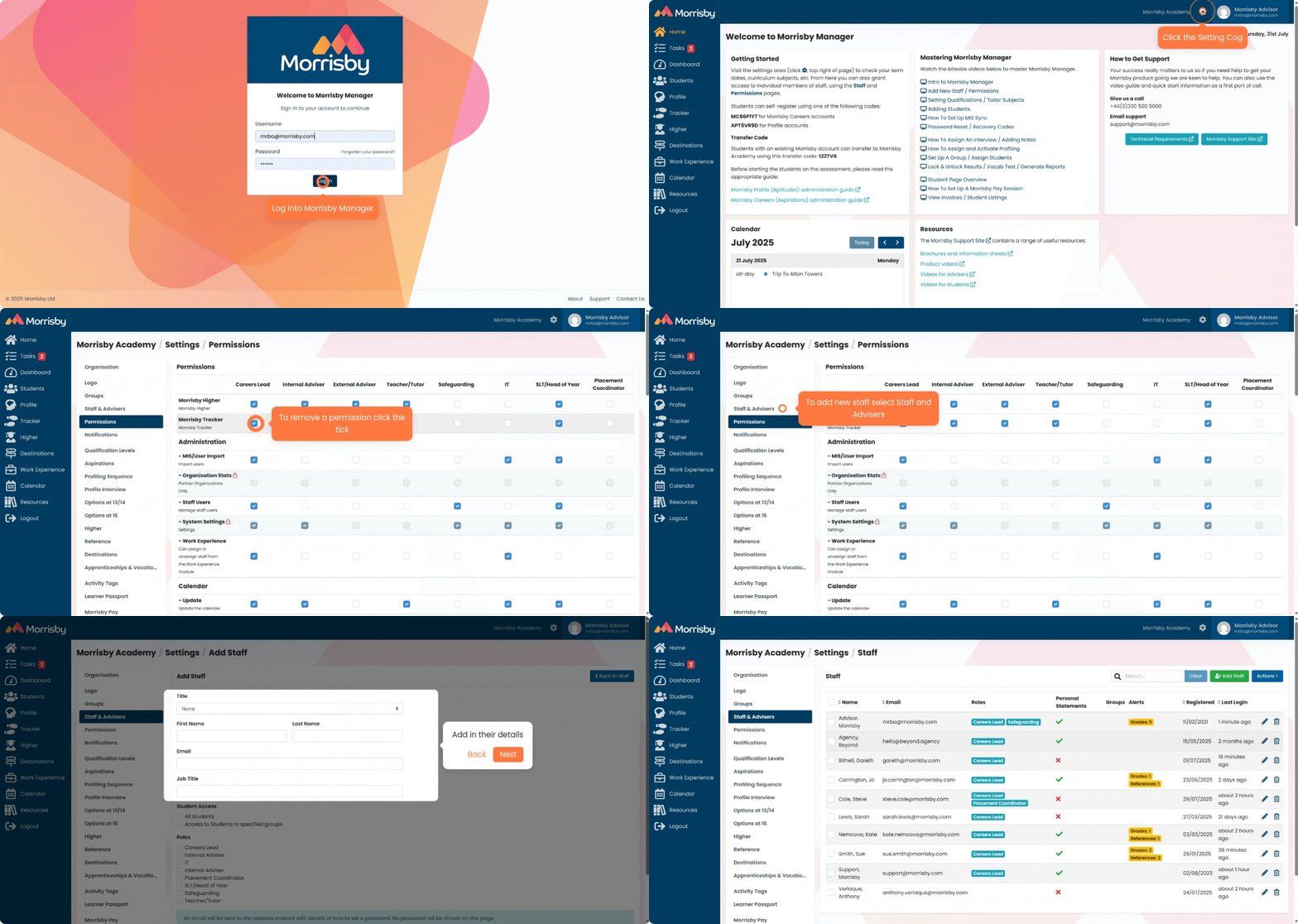
1. Accessing Permission Settings
- Log in to your Morrisby Manager account.
- Click the settings cog in the top-right corner.
- On the left-hand sub-menu, select the ‘Permissions’ section.
2. Understanding the Roles and Permissions View
- Permissions are organised by user roles (e.g. staff, advisor).
- Across the top: the different roles available.
- Down the left: the specific actions or data access options.
- A blue tick box indicates that a role has permission to perform that action or access that data.
3. Customising Permissions
- To change what a role can do:
- Tick or untick the appropriate boxes.
- Scroll to the bottom of the page.
- Click ‘Save’ to apply your changes.
- Default permission settings are provided by Morrisby, but you are encouraged to:
- Review and adjust them as needed.
- Ensure each role matches your organisation’s access policies.
4. Setting Up a New Staff Member or Advisor
When adding a new user:
- Enter their name, email, and optionally, their job title.
- Select which students they should be linked to.
- Assign them a role, which will determine their permissions (based on the settings you've configured).
5. Support and Assistance
- If you need help managing permissions or setting up staff:
- Reach out to the Morrisby Support team.
- They are available to assist you with any questions or setup issues.


